Tag: Calibre

  • Fixing freezing and battery drain issues on modern Kobo readers such as the Clara Color

    How to solve a problem where a Kobo ereader will hang or freeze or completely drain to 0% battery life overnight

    I’m posting this in the hopes of helping anyone with the same issue.

    I own an older Kobo Libra H2O model and never had any problems like this, but it happened often with my new Kobo Clara Color. I would pick it up in the morning and find the battery flat. Or I’d be using it and it would lock up and require a hard reboot. It would also lose my reading position in a book when this happened.

    The reason (at least for me; your mileage may vary) can be traced back to ePub files that contain errors such as improper markup or missing font specifications. This can happen if you’re loading your Kobo with ePub files other than those sold through the Kobo e-store, such as privately authored files or converted documents.

    You can address these errors in the free open source book management app, Calibre. Select a book in the main list, then press “T” or choose the menu option to “Edit Book”. Then look in the toolbar for an icon that looks like a bug, which might be labeled “Run Check”. This will scan the ePub file for errors, and offer to fix them automatically. Most of the time, this will solve all problems. Occasionally, a file may have problems that can’t be fixed, in which case you may have to delete or edit some HTML elements yourself, if you know how. When you’re done, press the equivalent of ‘Cmd-S’ to save the changes, and close the window.

    Finally, you’ll want to use a special Kobo-optimized form of the ePub format called KePub (or Kobo ePub) when transferring the files to your Kobo. This format is apparently fully compatible with all ePub readers, but offers enhanced performance when used with Kobos, so you may notice page turns and searches are faster.

    In Calibre’s settings, go to the Plugins page and find the option to install external plugins. Search for KoboTouchExtended and install that, then configure it to automatically convert books before sending them to your device. You can refer to this Reddit thread and the links within it if you run into any trouble.

    If you don’t use Calibre, there are standalone tools for converting ePub files to KePub such as this web-based one which does everything in your browser — no uploading to servers involved.

    Ever since doing this a couple of weeks ago and transferring all my books over again, I haven’t run into this issue despite using it quite a bit.


    Summary

    Problem Cause: ePub files with errors, such as improper markup or missing font specifications, can cause freezing, battery drain, and reading position loss on Kobo Clara Color.

    Solution: Use Calibre to check and fix ePub file errors, then transfer the files to Kobo using KePub format for enhanced performance.

    Plugin Installation: Install the KoboTouchExtended plugin in Calibre and configure it to automatically convert books to KEPUB format before sending them to your Kobo device.
  • iCloud Drive and Calibre compatibility

    About 7 years ago, I wrote a post about how the ebook library management app Calibre can contribute to problems with Amazon Kindle e-readers: it basically screws their battery life. I detailed a workaround for it, and to this day, I still get visits to that page, so neither Calibre nor Amazon must have gotten around to fixing it.

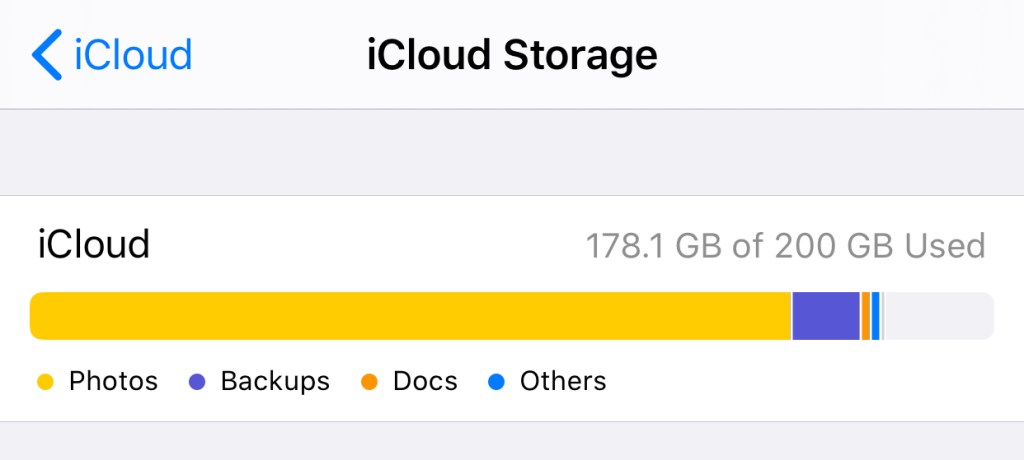
    At one point, I had a large orange chunk on the bar above dedicated to “Documents” that weren’t actually there.

    I now have a suspicion that Calibre also causes problems with iCloud Drive, so I’m leaving this here for anyone it might affect. Some scenarios for the search engines below:

    • If you store your Calibre Library folder on iCloud Drive, and have noticed that your remaining space does not reflect the storage you’re using, this is for you.
    • If you have deleted files on iCloud Drive but find that the free space reported by iCloud.com or your device does not immediately update to reflect the deletion, or…
    • If you have removed everything on iCloud Drive but still find space allocated to “Documents” in the “Manage Storage” section of iCloud settings on your iPhone/iPad — in other words, if you expect to have free space, and have done everything including a check of the “Recently Deleted” area and emptied your Recycle Bin, but the amount of free space is still inaccurate, I know that feeling.

    This seems to happen to a lot of people, perhaps for other reasons, but it happens. Skip ahead to “Is it you, Calibre?” if you just want my conclusion.

    So here’s my experience. A couple of years ago, I had this issue, and had to call Apple Support. It took several calls to resolve, because they wanted me to sign out of iCloud on every device (not an insignificant hassle with multiple devices), and when that established that the issue was on their servers, it had to be escalated to Engineering, and the eventual fix was they wiped everything on my Drive and reset it. I had to backup all my files locally (requires a Mac!) first. I believe I still suffered some data loss.

    After that, it was all good, but my confidence in iCloud Drive was shaken, and I didn’t want to use it as storage for anything important. Every year since then, they’ve made enhancements to iCloud Drive, and to the Files.app on iOS, which has made me slowly more willing to embrace it again as a cloud file system worthy of My Stuff.

    And then this happened again. 13GB of space just wouldn’t come back after I’d deleted files. The files were gone, the space was not reclaimed. After putting it off for two weeks, I got on the phone with Apple again, and two calls later, they managed to “repair” my Drive using some standard tools they have (Engineering was not involved this time). So, a slightly better experience than before.

    Is it you, Calibre?

    I’ll say upfront that this is a hunch. I don’t have the strength anymore to experiment on my iCloud account and conclusively prove anything.

    Both times this happened to my iCloud Drive, I was using it quite “normally”. Nothing fancy, except that my Calibre Library folder was on it, and I knew that the Calibre app was actively updating files on it whenever I added/removed ebooks. This last time, the problem appeared after I’d deleted a ton of files THROUGH Calibre, and as best I can recall, a similar situation took place years ago.

    With the Amazon Kindle problem, there’s something about the way that Calibre writes files to the Kindle’s drive that causes it. In other words, Calibre (which is a sluggish cross-platform app that behaves in a very non-Maclike way) may have some non-standard ways of interacting with the OS and filesystem. I think the way that it writes/deletes files isn’t the same as if you manually dragged files around yourself via the Finder. It might be through some low-level UNIX operations, but this is where I’m out of my depth.

    So it’s not a stretch to imagine that when you delete ebooks in Calibre, it deletes them from your drive in a way that may cause issues. Deletes them in a way that is invisible to iCloud, so it doesn’t know that the files are gone and it should give you the space back. On a local drive? It works fine, and that’s how it’s used by millions anyway. But on a weird aliased virtual cloud drive that Apple hacked together inside a folder called “Mobile Documents”? Maybe not fine!

    Here’s what I’d suggest trying if you have this problem: move your Calibre Library off iCloud Drive. I’ve put mine on Dropbox and it seems fine. Do NOT put it on Google Drive. Call Apple, and have them repair or reset your drive. Some luck is required here, but they’re your only hope. Once you get your missing space back, don’t use Calibre with it again.

    I’ll be here with crossed fingers too, waiting to see if this happens again.

  • Fixing Battery Life Problems on a Kindle Paperwhite

    Fixing Battery Life Problems on a Kindle Paperwhite

    If you’re noticing that your Kindle’s battery life isn’t what it’s supposed to be, or are looking for information on how to solve the “Books not yet indexed” problem, this post may help you.

    I bought my Kindle Paperwhite while on vacation in Japan, where they are significantly cheaper thanks to a campaign against the entrenched Kobo readers in that market, but noticed it wasn’t living up to stated battery life claims. My previous Kindles didn’t either, but the problem was less noticeable because I used them more at the time, and thus charged them more frequently.

    I recently left the Paperwhite alone during a busy stretch of two weeks and was shocked that the battery had gone nearly flat.

    After poking around online, I discovered that the Calibre software I use (a popular open-source ebook manager) causes a feature of the Kindle to misbehave.

    When idle, the Kindle tries to index your ebooks so you can perform word searches quickly, but if the file is corrupted or in some way fails to conform to the Kindle’s expectations, it gets stuck indefinitely trying to repeat the operation. That drains the battery, and those books never finish indexing, which must affect searching and navigation.

    You can test if this issue is affecting you by performing a search for some nonsensical string such as “jejficueh” which you know won’t appear in any books. If you see a section titled “Books not yet indexed” appearing on the blank search results screen, then you have a bunch of books that never finished indexing.

    For books downloaded through Amazon’s Kindle store, the solution is to delete the ebook file and download it again (at no charge).

    But because we don’t have a Kindle online store here, mine is manually loaded with mobi files, PDFs, and the like. Deleting and re-copying the affected files wasn’t helping.

    After reading forum posts by similarly troubled users, and some proposed solutions, I found out that Calibre does something strange to ebook files when you use the “Send To Device” button to install books on a Kindle connected to your PC/Mac. This is what you’re SUPPOSED to do, by the way. The solution is to click “Save To Disk”, which outputs a clean file to some location on your computer such as your Desktop (again, Send To Device shouldn’t be doing anything different, but it does), and then manually copy the book onto the Kindle using your regular file manager e.g. the Mac Finder or Windows Explorer.

    It’s probably a bug. I’ll be writing to the Calibre guys, but just wanted to put this out here in case it helps anyone.