
Category: Apps

  • CommonVerse

    CommonVerse

    Play at commonverse.app


    Magnetic poetry for a post-Wordle world.

    Every morning, everyone on the planet wakes up to the same handful of words. Drag them around the canvas. Arrange them into something — a poem, a phrase, a punchline, a prayer. Save it to show your friends, then come back tomorrow.

    No scores. No wrong answers. Just you, today’s words, and whatever you make of them.


    How it works

    New words drop at midnight in your timezone. They’re a mix of nouns, verbs, and adjectives, enough to build something with. There’s a bin in the corner where you can drag unwanted words to, freeing up some space. You’ll also find a few connector words stashed in the bin every day to help you create your masterpiece. Tap words once to make them bigger. When you’re done composing, click the Share icon to save an image with the day’s date.


    Three themes

    CommonVerse comes dressed for the occasion.

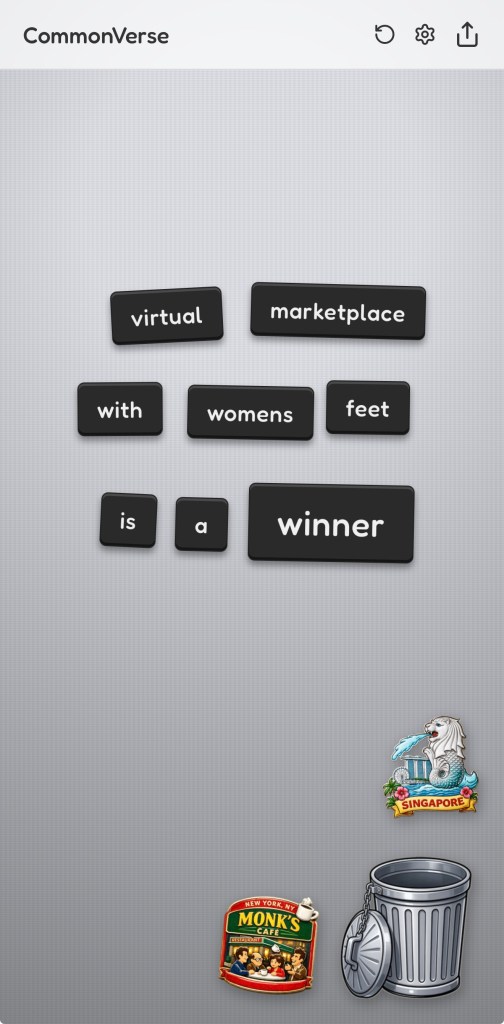
    • Fridge Magnets puts you in front of a stainless steel door covered in letter magnets and a few decorative surprises.
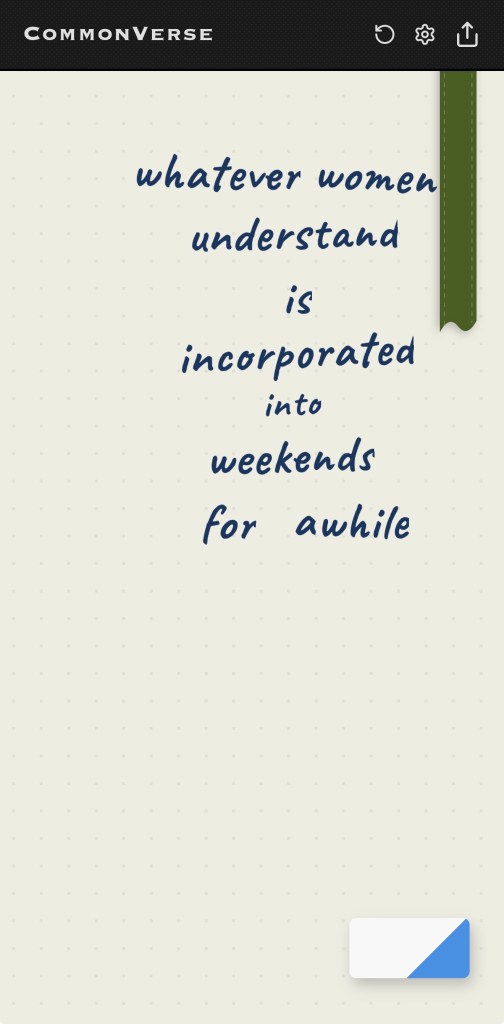
    • Notebook gives you dot-grid ivory paper, a bookmark ribbon, and a handwriting font.
    • Typewriter goes analogue all the way — classic typeface, paper bail, wire mesh bin.

    Everyone gets the same words each day. What will you do with them?

    Play CommonVerse →


    Disclaimer: I made CommonVerse with the help of Google’s Gemini 3/3.1 Pro LLM and take no responsibility for any damage or disappointment.

  • Library Supercollider

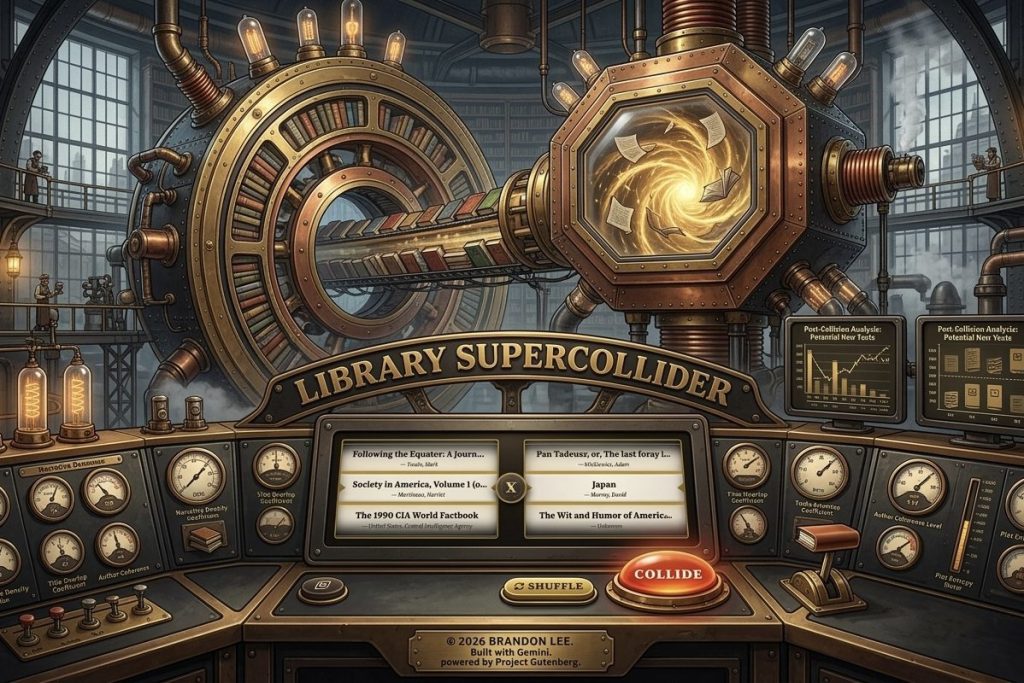
    Library Supercollider

    Go to SmashMyBooksUp.com or LibrarySupercollider.com

    In 1959, William S. Burroughs took a pair of scissors to a page of text, rearranged the pieces, and taped them back together. His argument was that linear language was a control system — that by cutting it up, you could slip between the lines and find what was actually being said. Library Supercollider is the logical conclusion of that idea, scaled to over 10,000 books from the Project Gutenberg archives. CERN could never imagine.

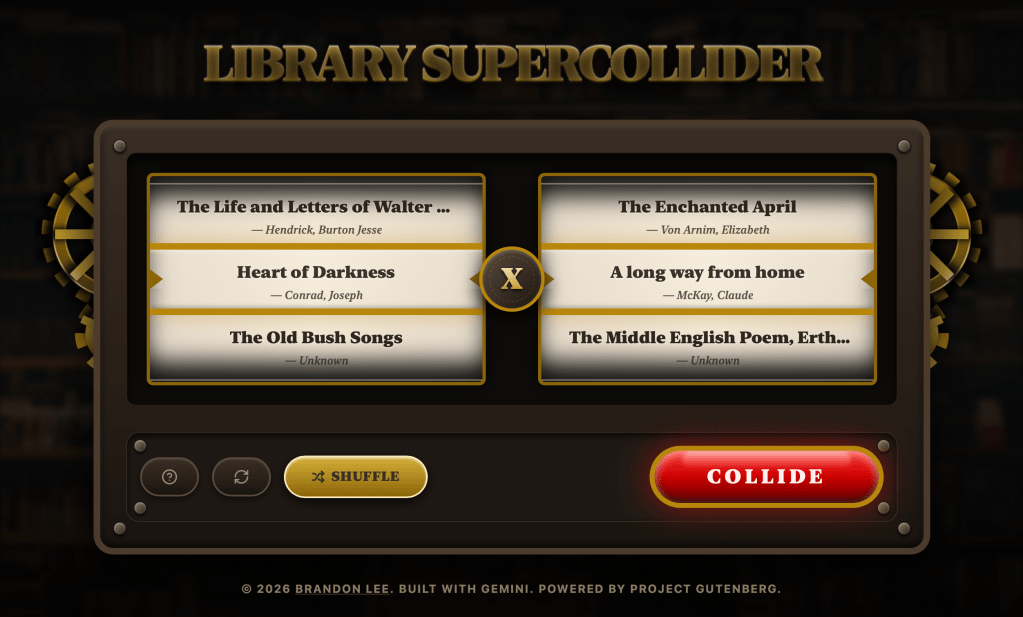
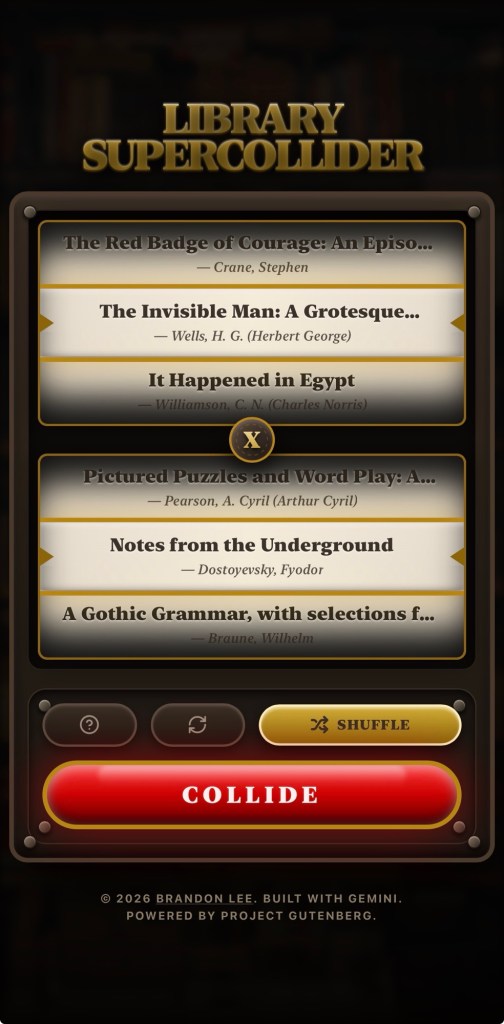
    Pick any two public domain texts and collide them. The engine samples a selection of pages and forces two authors who never met into a shared narrative space they never consented to. How it’s taped back together is up to you:

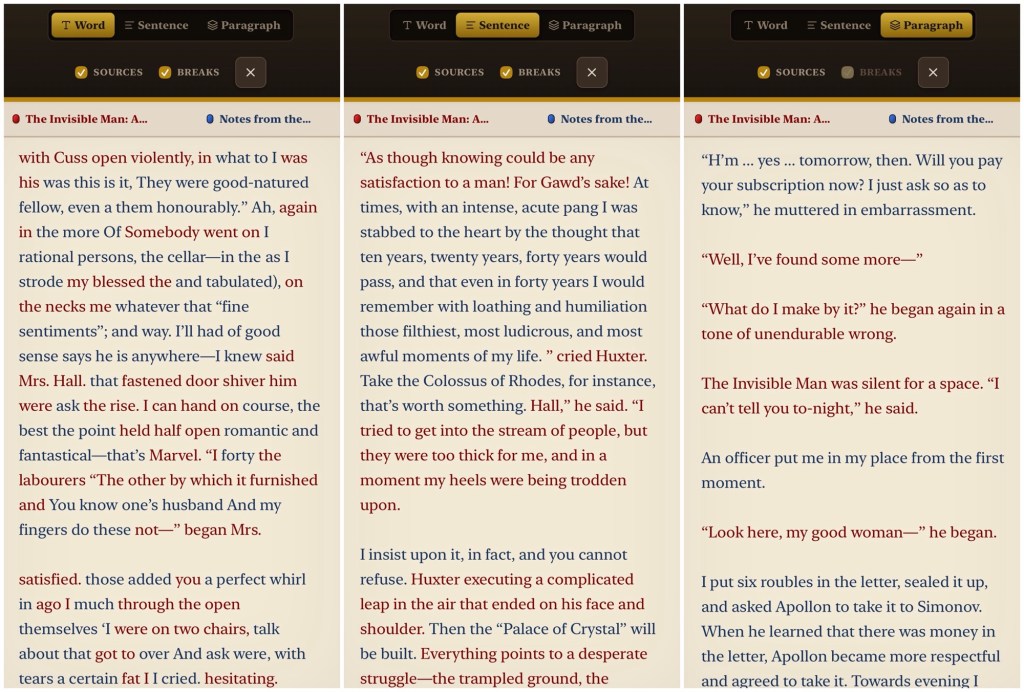
    • Paragraph level: Preserves some structural dignity.
    • Sentence level: Grammar survives, but sequence does not.
    • Word level: Sweet, nonsensical poetry.

    A source tracking mode colour-codes the wreckage by origin, in case you need to know who to blame for a particular sentence. The interface is intentionally a slot machine, and what emerges is not literature, exactly. It is also not not literature — which puts it in good company with many award-winning books! Burroughs believed the cut-up revealed hidden structures beneath the surface of language. Library Supercollider gives you the tools to find them for yourself.

    Desktop view
    Mobile view
    Mobile reading view with three modes

    And just because I had some time and Veo credits to spare, I thought I’d try my hand at making an over-the-top video ad to show it in motion on social media. Which meant a portrait video. Definitely stepping out of my comfort zone here.


    Disclaimer: I made Library Supercollider with the help of Google’s Gemini 3/3.1 Pro LLM. The authors of Project Gutenberg’s texts were not consulted, but they are hardly in a position to object.

  • SkySpotter

    SkySpotter

    Try it at useskyspotter.vercel.app

    GitHub page here

    Lie back in the grass and watch planes fly over. That’s it, that’s the idea.

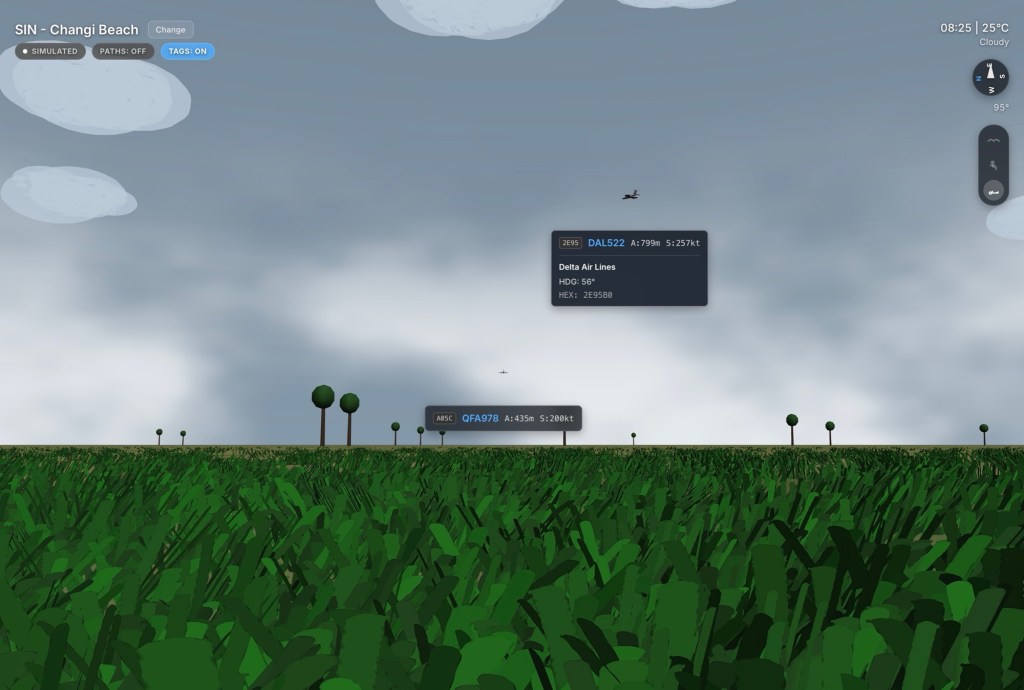
    Every other flight tracker gives you God’s view — cold and omnipotent, a screen full of blips moving across a flat map from thirty thousand feet above the action. Detached from the thrilling hum of jet engines and the sizzle of rain. SkySpotter puts you at ground level, either laying with your head down, or seated comfortably for a bit of plane-spotting. Watching real aircraft crossing real weather, in a 3D world designed at human scale.

    Screenshot

    It pulls live ADS-B data and renders it against procedurally generated airport runways anchored to real-world coordinates, in weather matching current conditions out there — fog, storms, clearing skies, stars coming out after midnight. Five vantage points are available: Changi Beach (Singapore), the TWA Hotel (New York), Myrtle Avenue (London), Jonanjima Seaside Park (Tokyo), and Al Garhoud Park (Dubai).

    Climb to bird’s eye height if you want the lay of the land. But the view worth staying for is flat on your back, watching the underside of something enormous drift silently overhead while the sound catches up.


    Disclaimer: I made SkySpotter with the help of Google’s Gemini 3/3.1 Pro LLM and take no responsibility for any damage or missed connections.


  • Urban Jungles

    Urban Jungles

    Try Urban Jungles at UrbanJungles.netlify.app


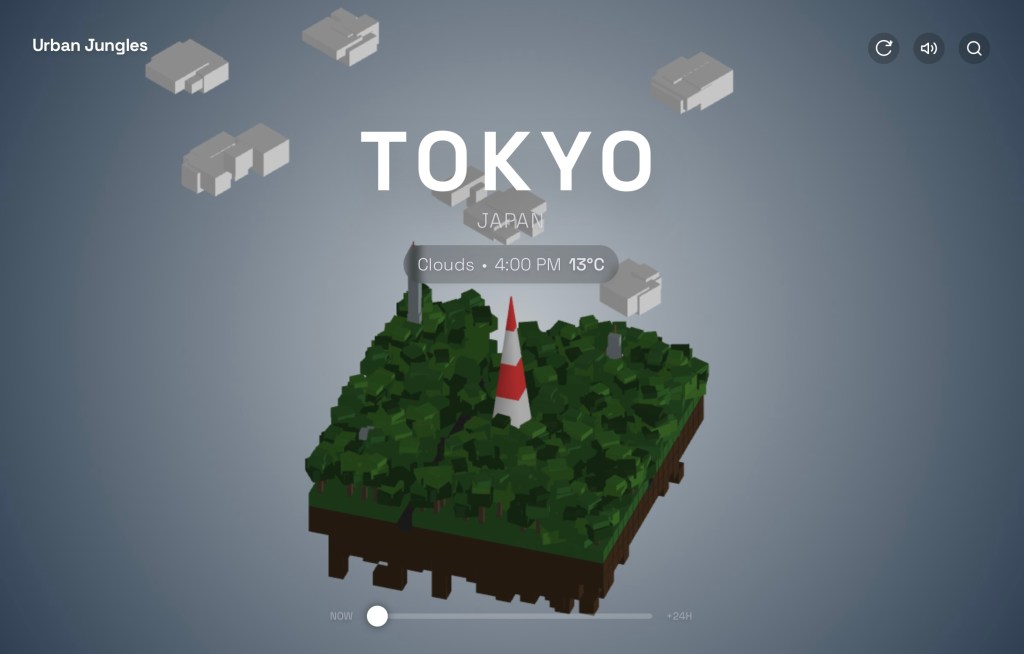
    Screenshot

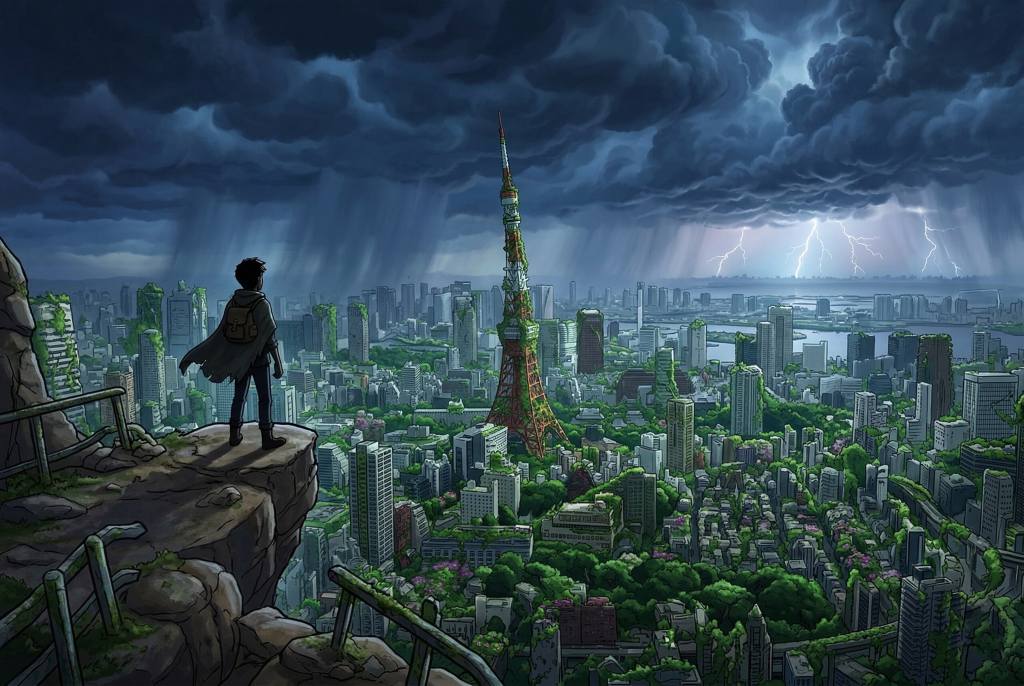
    We have always known, somewhere beneath the noise, that the cities we build are temporary. That the concrete will eventually crack. That something green and patient is waiting.

    Urban Jungles shows you the present — your present — transposed onto a world that has already moved on without us. The rain falling on your city right now is the same rain soaking the ruins in the app. The cold front rolling in tonight will strip the canopy bare, just as it strips the leaves from whatever remains.

    It is a diorama of grief and relief in equal measure. A miniature planet after humanity, held in your hands.

    Every city is searchable. Every hour of the next day is walkable. Step forward and watch the light change, the temperature drop, the landscape respond. Hear the sounds of wind and rain passing through empty streets. Orbit the ruins in full 3D — pan, tilt, inspect the overgrowth up close. The shadows track the actual sun, the stars come out at night. Tap the trees and birds scatter.

    Spin it slowly. Let it rain.


    Disclaimer: I made Urban Jungles with the help of Google’s Gemini 3/3.1 Pro LLM and take no responsibility whatsoever for any damage you do with it.

    P.S. If you use it on an Apple Vision Pro, a button for VR mode will appear on the toolbar. It is exactly what you think it is.

  • Collagen

    Collagen

    Use Collagen at usecollagen.netlify.app


    A simple tool for making collages, specifically with album cover art.

    Most collage tools are either bloated with unnecessary social features or too restrictive to be useful. Collagen is a single-purpose utility designed to solve a specific friction: the tedious process of manually sourcing high-resolution album art, aligning it in a grid, and then realizing you want to swap the top-left for the bottom-right. It turns a multi-step design chore into a fluid, drag-and-drop experiment.

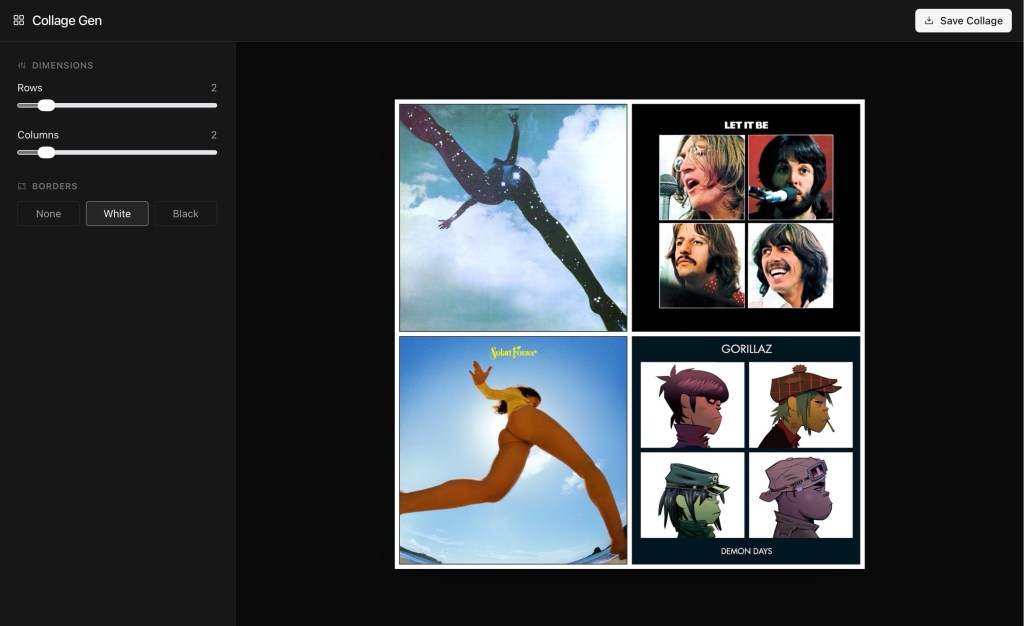
    Screenshot

    Features

    • Integrated Sourcing: Queries the iTunes database for official, high-resolution artwork (600×600) so you don’t have to hunt for covers or deal with low-res thumbnails.
    • Tactile Reordering: Drag and drop tiles to swap positions instantly. The layout logic handles the movement so you can focus on the visual flow.
    • Flexible Dimensions: Define your grid up to 10×10. The preview and export scale dynamically to match your rows and columns.
    • Hybrid Content:
      • Search: Instant API pulls for mainstream releases.
      • Upload: Support for local files (obscure imports, demos, or personal photos).
      • Text Tiles: Add context or labels with custom text tiles. Features automatic contrast (white/black) and a choice between a clean sans-serif or a classic serif typeface.
    • Borders: Toggle between borderless, white, or black frames. The logic includes outer edge padding for a symmetrical, finished look.
    • PWA Architecture: Built to be “Added to Home Screen.” It caches assets locally on your iPhone for faster subsequent loads and works as a standalone app.
    • Export: One-click generation of a high-resolution stitched PNG. It uses a dedicated image-proxy pipeline to ensure every tile renders correctly without the “blank square” errors common in browser-based canvas exports.

    Disclaimer: I made Collagen with the help of Google’s Gemini 3/3.1 Pro LLM and take no responsibility whatsoever for any damage you do with it.

  • HEIFer — iOS Shortcut for Batch-Converting Photos to HEIF/HEIC

    HEIFer — iOS Shortcut for Batch-Converting Photos to HEIF/HEIC

    Changelog:

    v1.01 (Jan 30, 2020) — iOS 13.3.1 fixes a bug that affected the way Share Sheet imports had to take you out of the Photos app and into Shortcuts. So this is now simplified. Also added emoji graphics to make the main menu fancier.

    v1.02 (Sep 5, 2020) — Updated to fix the shortcut stalling at deletion of original photos after processing. Apple changed some behavior in the Shortcuts.app.

    Summary

    HEIFer is a shortcut for iPhones and iPads (you can import and run it in the Shortcuts app that is part of iOS 13) that automates the batch conversion of photo to HEIF/HEIC formats. This has the benefit of making their files dramatically smaller without any visible loss of image quality.

    HEIF stands for High Efficiency Image Format, and Apple introduced support for it in 2017. You can find out more about the format here.

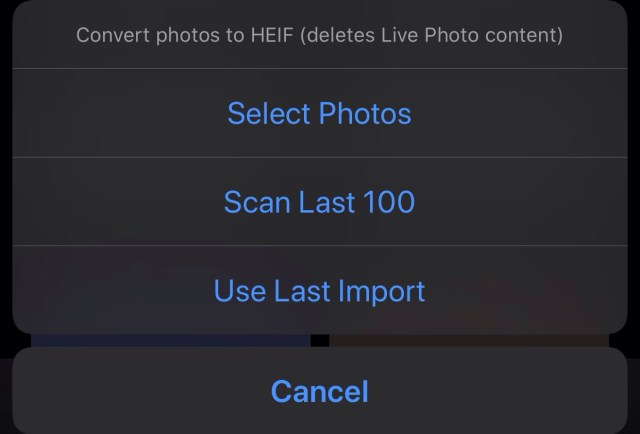
    HEIFer has three modes:

    • Converting a manual selection of photos
    • Scanning the newest 100 photos in your library, and converting any JPEG/PNG/TIFF images it finds
    • Converting the last imported batch of photos (from a camera or SD card, using an adapter)

    Add HEIFer to your Shortcuts.app here (v1.02)

    Why Did I Make This?

    This is my first proper iOS Shortcut and I made it to learn the ropes.

    I’m kinda all-in on the HEIF format, and if your iPhone is set to save at “High Efficiency” in the Camera section of Settings.app, then you’re already using it for every photo you take. The quality is great, and you can store twice as many photos in the same amount of storage space.

    But… I also shoot photos with other cameras, and every manufacturer, from Canon and Nikon to Sony and Leica, seems to be years behind in the software game, and the only options they offer are usually JPEG and RAW. What’s more, the CPUs in these cameras are usually very underpowered compared to what’s in your iPhone, so they don’t try very hard to compress the images efficiently. You can typically turn a 10MB JPEG from your camera into a 3–4MB HEIF file in less than a second. It’s a tremendous waste of space, both on device and in your cloud backups, to keep the JPEGs.

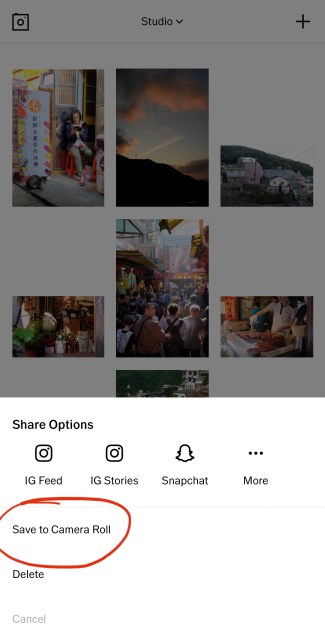
    When you save an edited photo out of VSCO, you’re turning a HEIF file into a JPEG

    I also edit my photos with iOS apps like VSCO and Lightroom, and almost all of them save the finished photos in JPEG. So if you’re regularly editing your iPhone photos, those small .heic files are still ending up as fat .jpg files at the end of the day. It’s nuts!

    So HEIFer is a way to quickly take those old-ass files, bring them into the present, and then dump the originals. For instance, if I’m shooting directly to JPEG on my cameras (why not RAW? That’s a topic for another day), all I have to do is plug in the SD card, select “Import All”, run HEIFer, and I’m done in three taps.

    If your photos have proper timestamps, then you will still see them in chronological order in the “Photos” tab. However, if you go into the “Recents” photo album, it will reflect the process of converting and deleting them, i.e. it’ll be as out of order as your recollection of a big night out.

    Usage

    (more…)