Category: Apps

  • Collagen

    Collagen

    Use Collagen at usecollagen.netlify.app


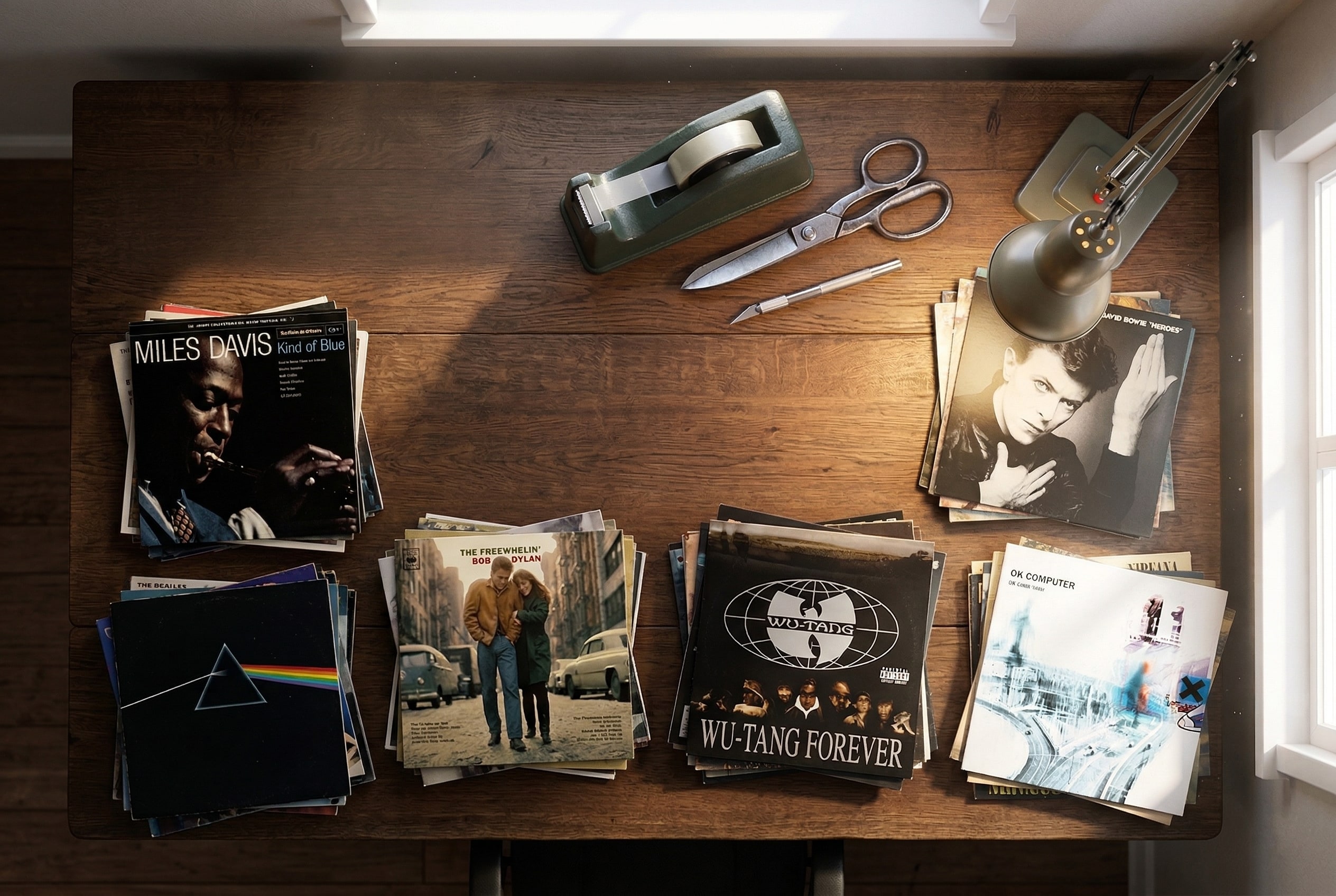
    A simple tool for making collages, specifically with album cover art.

    Most collage tools are either bloated with unnecessary social features or too restrictive to be useful. Collagen is a single-purpose utility designed to solve a specific friction: the tedious process of manually sourcing high-resolution album art, aligning it in a grid, and then realizing you want to swap the top-left for the bottom-right. It turns a multi-step design chore into a fluid, drag-and-drop experiment.

    v2.0 screenshot
    Crop to fit a range of new aspect ratios

    Features

    • Integrated Sourcing: Queries the iTunes database for official, high-resolution artwork (600×600) so you don’t have to hunt for covers or deal with low-res thumbnails.
    • Tactile Reordering: Drag and drop tiles to swap positions instantly. The layout logic handles the movement so you can focus on the visual flow.
    • Flexible Dimensions: Define your grid up to 10×10. The preview and export scale dynamically to match your rows and columns.
    • Hybrid Content:
      • Search: Instant API pulls for mainstream releases.
      • Upload: Support for local files (obscure imports, demos, or personal photos).
      • Text Tiles: Add context or labels with custom text tiles. Features automatic contrast (white/black) and a choice between a clean sans-serif or a classic serif typeface.
    • Borders: Toggle between borderless, white, or black frames. The logic includes outer edge padding for a symmetrical, finished look.
    • PWA Architecture: Built to be “Added to Home Screen.” It caches assets locally on your iPhone for faster subsequent loads and works as a standalone app.
    • Export: One-click generation of a high-resolution stitched PNG. It uses a dedicated image-proxy pipeline to ensure every tile renders correctly without the “blank square” errors common in browser-based canvas exports.

    Change log:

    – 14/04/26: Version 2.0


    Disclaimer: I made Collagen with the help of Google’s Gemini 3/3.1 Pro LLM and take no responsibility whatsoever for any damage you do with it.

    Related blog post: Week 9.26

  • HEIFer — iOS Shortcut for Batch-Converting Photos to HEIF/HEIC

    HEIFer — iOS Shortcut for Batch-Converting Photos to HEIF/HEIC

    Changelog:

    v1.01 (Jan 30, 2020) — iOS 13.3.1 fixes a bug that affected the way Share Sheet imports had to take you out of the Photos app and into Shortcuts. So this is now simplified. Also added emoji graphics to make the main menu fancier.

    v1.02 (Sep 5, 2020) — Updated to fix the shortcut stalling at deletion of original photos after processing. Apple changed some behavior in the Shortcuts.app.

    Summary

    HEIFer is a shortcut for iPhones and iPads (you can import and run it in the Shortcuts app that is part of iOS 13) that automates the batch conversion of photo to HEIF/HEIC formats. This has the benefit of making their files dramatically smaller without any visible loss of image quality.

    HEIF stands for High Efficiency Image Format, and Apple introduced support for it in 2017. You can find out more about the format here.

    HEIFer has three modes:

    • Converting a manual selection of photos
    • Scanning the newest 100 photos in your library, and converting any JPEG/PNG/TIFF images it finds
    • Converting the last imported batch of photos (from a camera or SD card, using an adapter)

    Add HEIFer to your Shortcuts.app here (v1.02)

    Why Did I Make This?

    This is my first proper iOS Shortcut and I made it to learn the ropes.

    I’m kinda all-in on the HEIF format, and if your iPhone is set to save at “High Efficiency” in the Camera section of Settings.app, then you’re already using it for every photo you take. The quality is great, and you can store twice as many photos in the same amount of storage space.

    But… I also shoot photos with other cameras, and every manufacturer, from Canon and Nikon to Sony and Leica, seems to be years behind in the software game, and the only options they offer are usually JPEG and RAW. What’s more, the CPUs in these cameras are usually very underpowered compared to what’s in your iPhone, so they don’t try very hard to compress the images efficiently. You can typically turn a 10MB JPEG from your camera into a 3–4MB HEIF file in less than a second. It’s a tremendous waste of space, both on device and in your cloud backups, to keep the JPEGs.

    When you save an edited photo out of VSCO, you’re turning a HEIF file into a JPEG

    I also edit my photos with iOS apps like VSCO and Lightroom, and almost all of them save the finished photos in JPEG. So if you’re regularly editing your iPhone photos, those small .heic files are still ending up as fat .jpg files at the end of the day. It’s nuts!

    So HEIFer is a way to quickly take those old-ass files, bring them into the present, and then dump the originals. For instance, if I’m shooting directly to JPEG on my cameras (why not RAW? That’s a topic for another day), all I have to do is plug in the SD card, select “Import All”, run HEIFer, and I’m done in three taps.

    If your photos have proper timestamps, then you will still see them in chronological order in the “Photos” tab. However, if you go into the “Recents” photo album, it will reflect the process of converting and deleting them, i.e. it’ll be as out of order as your recollection of a big night out.

    Usage

    (more…)