Tag: iPhone

  • Link: Jawbone’s Greater Ambitions for the UP

    This Wristband Could Change Healthcare | Monday Note

    The corpus of medical observations is based on classic clinical tests of a small number of patients. On the other hand, Jawbone thinks of the UP wristband — to be worn 24/7 by millions of people — in a Big Data frame of mind. Hosain Rahman is or will soon be right when he says his UP endeavor contributes to the largest sleep study ever done.

    Monday Note examines the Jawbone UP, which I’ve enjoyed using these past two weeks, and explores its implications for the healthcare industry — the real potential of the device — and why Jawbone has received over $200m in funding from investors to date. You might not like where it’s going: giving corporations more data and insight, quite granular at that, into our lives and health statuses, but the potential for good here is also strong.

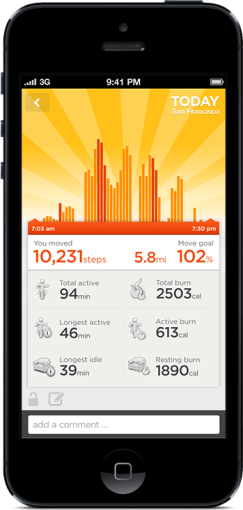
    As for me, my use is still going strong; I enjoy the knowledge and statistics, and feel motivated to reach my daily activity goal of 8,000 steps (last night, I walked almost the whole way back home from the office and exceeded it by 50%).

    End of Day Update: Jawbone has just announced a new API for connecting the UP smartphone app with other services such as My Fitness Pal, Sleepio, Withings (Wi-Fi weighing scale), and the very popular Runkeeper. With the latest 2.5 update, you’ll be able to log runs and other data in UP just by using these other apps the way you already do. Big news, as My Fitness Pal instantly improves the food/calorie database, and Runkeeper should bolster the wristband’s sensors with GPS accuracy.

    Jawbone launches an ecosystem for Up | The Verge

  • One Week with the Jawbone UP: How its Design Inspires Behavioral Change

    up-by-jawbone-lowres-015

    I bought one of the newly revised Jawbone UP wristbands a week ago. For those not following the rise of wearable activity trackers such as the Nike+ FuelBand, they are essentially pedometers you put on your wrist as you go about your business each day (and wear to sleep at night, in some cases), that connect with your PC or smartphone to give you more insight into your health. The UP was one of the first products on the market, but suffered from design and manufacturing defects that led to a hasty recall and another year on the drawing board before it was finally re-released last Christmas.

    It all started with using the free Moves iPhone app (by the Finnish company ProtoGeo) for about a week, during which I got a taste for recording and quantifying my movements. When I saw the UP on sale locally, it was an easy purchase. It’s only been a week, but it has been a behavior-altering experience for me so far. Along with its companion app, the UP provides a couple of key features.

    • Activity reports
    • Food logging
    • Sleep quality tracking
    • Social network awareness
    • Fiddle-free design
    • Comfort and style

    Activity reports

    carousel-2-3

    Open up the app and you’ll see at a glance how you’re doing against your set objectives. A healthy target is 10,000 steps a day, but few sedentary workers can meet that. Because UP is an internet-connected service, it’s able to tell you what others like you (in age, gender, height, and weight) are averaging. In my case, the average most do is about 5,500 steps a day. I decided to set myself a high but achievable goal of 8,000 steps.

    What’s happened since? I’ve found myself striving to reach that by alighting one bus stop ahead of my destinations, taking the long way around the office, and going for more short walks whenever I can.

    It translates your activity into calories burnt, which it shows you alongside an estimate of how many calories you burn just resting, and a total for each day. Every now and then, the application shows you “Insights”; pre-written facts and advice tailored to your own performance. Examples include deciphering hidden patterns in your behavior and mood, and helping you understand terms like “you walked 8,000 steps” with statements such as “equivalent to walking across the Golden Gate Bridge and back”.

    Food logging

    This part is optional, but you can enter your meals (or just photos of them) to keep a record of what you’ve eaten. If they’re available in the online database, nutritional information is attached. It has the same effect as using an expense tracking app: it makes you acutely aware of every little bit you put into your body, and alerts your conscience to the unnecessary.

    In practice, having a vague idea of how many calories I’m consuming, coupled with the knowledge of how much I’m burning (or NOT burning, on idle days) has been powerful. If I know that I’ve only moved a minimal amount all afternoon, any random urge to snack quickly meets a mental roadblock — “Why would I need more calories?”

    Sleep quality tracking

    Like the popular Sleep Cycle app, the UP band can monitor your movements in the middle of the night, and map out your light vs. deep periods of sleep on a graph. And then at the best possible time close to your intended waking hour, it will silently vibrate in the morning.

    You are asked to set a sleep goal for yourself, and along with all the other data it collects, this is plotted over a timeline of days, weeks, and months, which illustrates how good you’ve been at getting the sleep and exercise you need.

    Social network awareness
    carousel-2-1
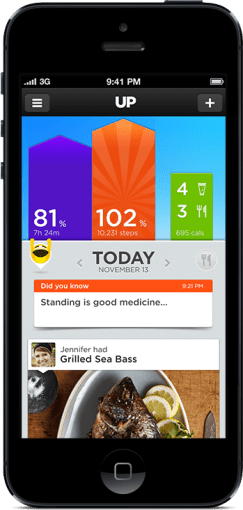
    This is easily one of the best features of the UP. Other people can be added as “teammates” and their activities populate your Home screen, turning it into an Instagram of physical activity. You’re encouraged to inspect their details, leave comments, or react with a small selection of emoticons. You might see that a friend had a healthier lunch, or walked far more than you, or slept better than you. These events nudge you into behavior change.

    When I started, one of the only people it found for me to add to my “team” was someone living in Japan that I only follow on Twitter and YouTube. I asked, she said ‘Sure’. I don’t know her personally at all, but I’ve found that reading UP’s activity feed is a unique interaction different from regular status updates. Being able to correlate your own physical state with another person’s through shared metrics, leads to a different sense of awareness; any encouragement you receive resonates that much more. Her most active day blew me away at over 24,000 steps, followed by 11 hours of sleep. It really spurred me on to try and find the time for activity. Multiply that by the number of people you follow, and the social features become an extremely compelling component.

    On my second day, two more people I interact with online bought their own. On the third, my girlfriend joined in.

    Fiddle-free Design

    While the UP is not designed to be worn and forgotten — its constant presence serves to remind you of your goals — it is designed to be worn and left alone. Its long battery life (about 7-10 days) is one of the ways in which this is obvious. Charging via USB only takes about 80 mins, which you can easily do while idle.

    In chasing this long battery life, the UP eschews Bluetooth syncing, which other products like the Fitbit and Nike+ FuelBand have. To sync the UP, one must remove it and plug one end into a smartphone’s headphone jack. Jawbone recommends doing this about twice a day to keep up with your own stats and update your team. On the other wristbands, one only has to start the app, and they sync wirelessly.

    I actually think this omission is a strength.

    Like how shooting on film frees you from constantly checking how the photo came out on the little digital screen, thereby letting you take more photos and experience the scene you’re in, not continuously syncing the UP creates mystery, anticipation, and actually lets you get on with it and not fiddle with tracking apparatus every spare minute.

    In his excellent essay about using a FitBit, Paris and the Data Mind, Craig Mod described looking at the LED display and seeing that he had climbed 96 flights of stairs one day. The next thing he did was walk halfway across the flat town of Palo Alto to the nearest flight of stairs he knew of, so that he could shift that number to read 100. It sounds like great exercise, but I don’t want to obsess over live numbers or end up conducting accuracy tests each day over how many steps it’s counting.

    The UP way, you’re wondering things like “will I break my record today?”, and if you’re extra competitive, “I hope I don’t lose to so-and-so,” as you go about your business. Sometimes, by not knowing, you exceed your targets. And then you sync at the end of the day, and it’s like waiting for lottery numbers to be called out. It’s its own kind of fun.

    Comfort and style

    up-by-jawbone-lowres-016

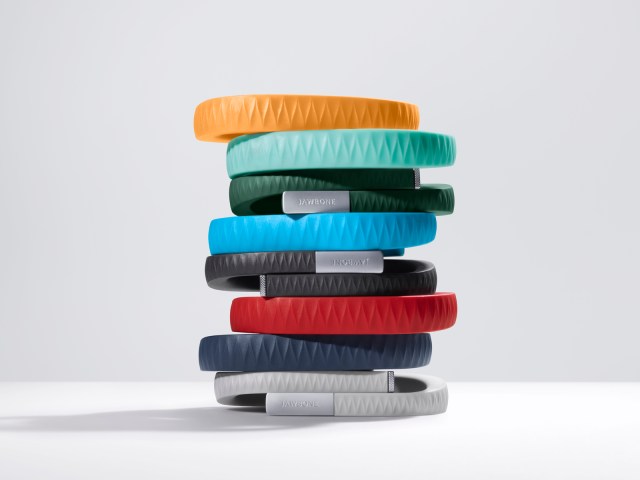
    The UP is available in 8 colors, of which 3 are available here in Singapore right now. I got the Black (sorry, Onyx), and it’s pretty nondescript and unlikely to draw attention. The brighter colors pop more, and show off a subtle zig-zag texture that identifies it as part of the company’s product range under design chief Yves Béhar. None of them are what you’d expect a “wearable computing device” to look like. The only button is cleverly hidden, looking like an integrated design feature. Two LED lights are embedded beneath the hypoallergenic rubber surface, and only visible when lit. It’s much thinner than the FuelBand, and could easily be mistaken for one of those Livestrong-type charity support wristbands from a few feet away.

    These things help with making the UP an invisible part of daily life, which gives it potential to succeed at being adopted by more. But as the wearer, I always feel its presence (at least in this first week). The routines I’m developing around the app, around thinking about moving more, burning more, eating less, around how my teammates improve themselves, are the very definition of behavior change.

    If having visualized, connected, and actionable data on your own body and movements sounds interesting to you, the UP will probably be a great addition to your life.

  • Uber in Singapore

    Uber in Singapore

    IMG_6681

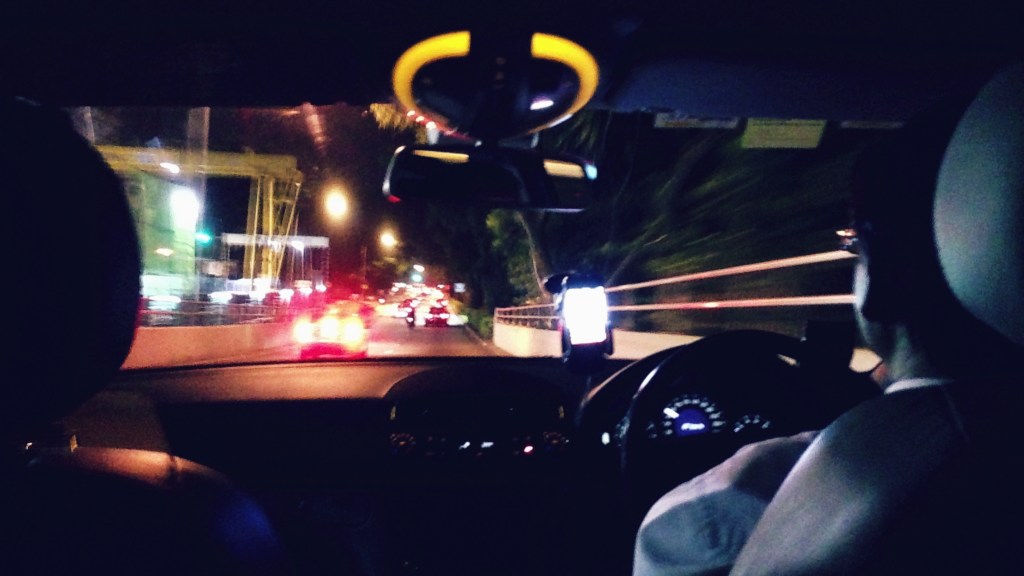
    The popular U.S. limousine service, Uber, has begun a local trial with a small fleet of cars, and I called one tonight after a late one at the office.

    For those unfamiliar with the service, it’s like booking a taxi through ComfortDelGro’s iPhone app, but without the frustration and depressing emptiness their thoughtless UX design induces. Uber’s cars are all top-end Mercedes Benz sedans, and cannot be flagged down on the street (limos, not cabs).

    Since Uber also relies on an iPhone/Android booking app, the main differences compared to local taxis from SMRT & Comfort are cost, luxury, and payment method. Uber cars cost more: base charges start at S$7 and trips are a minimum S$12. Making up for this in some way is the fact that fares are consistent throughout the day and night, and include all charges such as our local Electronic Road Pricing (ERP) scheme.

    Being willing to pay more means getting a car when you want one, at least that’s the promise once operations are in full swing. If money’s no object, that’s the end of waiting 30 minutes on the line for a taxi. One of the nicest touches of the whole experience is how you just get out of the cab when you arrive at your destination — the fare is charged directly to your credit card and you instantly get a receipt via email. Your driver rates you on a 5-star scale, and you rate them too.

    My car arrived within 10 minutes, and it was a great ride. No hiccups or hassle. At the end of a long day, a comfortable seat makes all the difference. The last thing you want (#firstworldproblems alert) is a torn and messed up leather seat, a balled up tissue in the door handle, touching your fingers, etc. I can’t justify paying Uber’s prices in every instance that I’d normally take a taxi, but god do I ever want to!

    Uber iPhone app

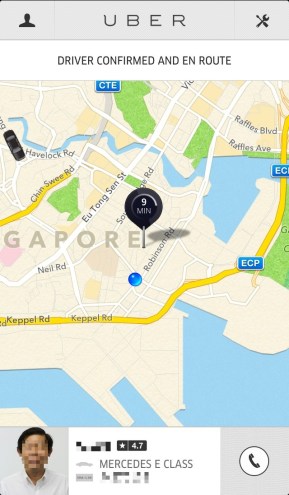
    The booking flow and interaction design in the iPhone app really puts the local competition to shame, and speaks to the premium service that it strives to be. Marking your pickup location on the map is as easy as using Google Maps or picking a location from a list in Foursquare. The moment your car is confirmed, a photo of your driver along with his name and car license number/model are displayed onscreen. On the map above, a little black car approaches your destination.

    It’s a pleasure to see a transport alternative that breaks through the calcified monopoly of our local cab operators, where the same pool of cars has to service street pickups, taxi ranks, and phone/internet bookings. Because of the financial incentives that bookings provide, it’s often hard to get a cab at a queue or off the street. Booking has become something of a norm here, and the system feels broken. A solution that allows people to pay more to be served first isn’t a great one, but it could ease a little pressure and be a very profitable and popular short-term solution.

    Get $10-20 free credit with my referral link: http://uber.com/invite/ubersangsara
    or use promo code “ubersangsara” if you’d like to try them out.


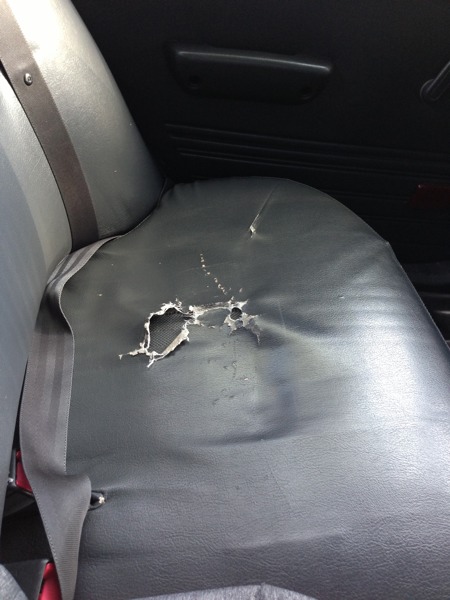
    Edit: if you thought I was exaggerating about the torn seats, here’s the regular taxicab I had the next morning, faintly smelling of piss to boot.

  • Upgrade Your iPhone’s Camera with ClearCam

    Buy ClearCam on the App Store

    Occipital’s ClearCam (usually $1.99) was one of my favorite camera apps; it exemplified the kind of surprising software experience that made the iPhone special; an inexpensive downloadable bundle that seemed to change what the hardware in your hands could do: it took photos at a higher quality and resolution than the sensor in the phone allowed.

    How? By capturing a burst of photos (5-6) and combining them to average out noise, sharpen edges, and boost light sensitivity with a proven technique called Super Resolution. It was the only app of its kind on the store, and Occipital seemed to know their imaging stuff, having also made the outstanding 360 Panorama (featured in my list of essential camera and photo apps).

    It allowed the 5mp iPhone 4 to capture crisp 11mp images, but upon the release of the 8mp iPhone 4S, the app simply stopped working. I never found a replacement, and didn’t believe it would be coming back, thinking the processing requirements of working on an 8mp image were perhaps too much for a phone to handle.

    Now, more than a year on, the app has finally received an update. If you have an iPhone 5, you can now shoot at an astounding maximum size of 18mp. The results are far better than if you took an 8mp photo and resampled it in Photoshop. This isn’t a simple resize; even when brought down to the same resolution as a standard shot, it’s a cleaner image being assembled — the fact that it’s also twice the resolution is just the kicker.

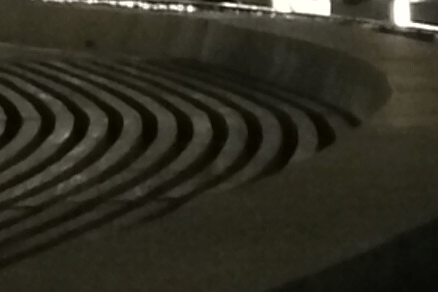
    The advantage is especially apparent in noisy low-light shots, shown in the 100% detail shots below. Notice how the lines in the larger ClearCam capture manage to be cleaner, and how the smooth surface areas have much less visible noise. The quality of the noise reduction is much higher than you would get from noise reduction post-processing based off a single image. A simple Unsharp Mask operation would improve the ClearCam shot even further.

    100% detail from 8mp standard camera shot
    100% detail from 8mp standard camera shot
    100% detail from 18mp ClearCam shot
    100% detail from 18mp ClearCam shot

    Over my experience with the app, I’ve found the ClearCam versions are just as usable, if not more so. Outside of photography, it’s extremely handy for whiteboard captures in a work environment.

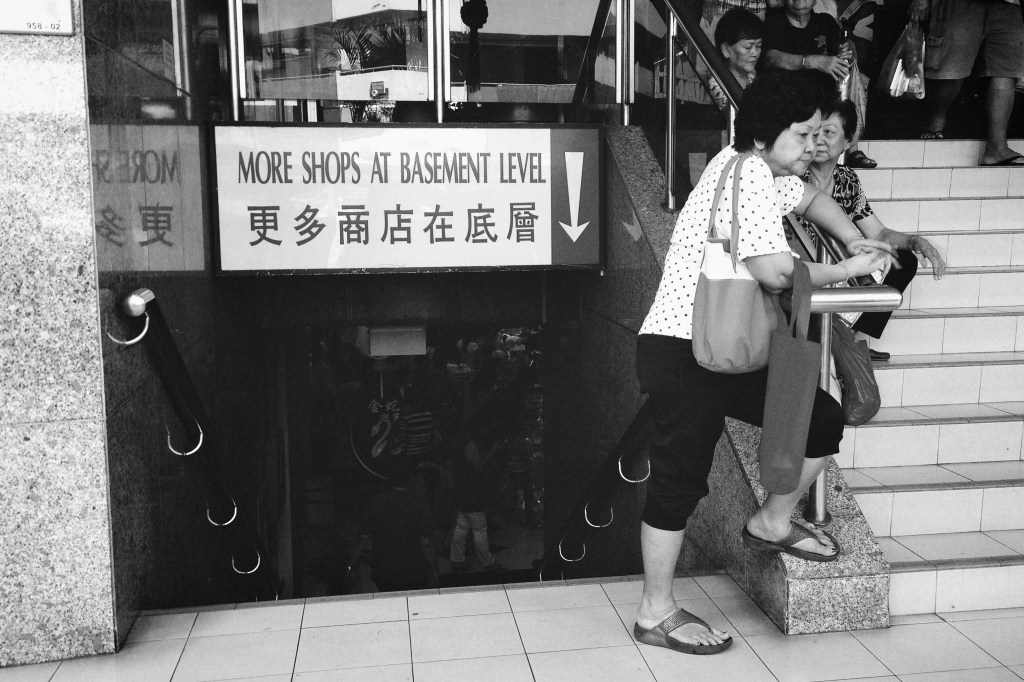
    One of the most exciting advantages of having clean 18mp shots is that it gives you a lot of freedom to crop and still have something the size of a normal shot. It’s almost as good as having a 2x or more optical zoom on your iPhone.

    Fu Lu Shou Complex
    (Above) This was cropped from a wider shot, to frame the stairway (I liked the old-fashioned sign) and old lady leaning on the rails. The final photo is still a generous 11mp!

    As long as you don’t have too much movement going on in the shot, ClearCam’s “Enhanced” mode is worth using as your default means of capture. The app also offers a “Quick” mode, which takes 3-4 standard resolution shots in a quick burst, and then analyzes them to save only the clearest, least-blurry photo to your Camera Roll. It’s an alternative to the “Stabilizer Mode” that many other apps offer, where your photo is only taken once your hands are still. Often, when it’s really hard to steady yourself (when it’s freezing, for example), you can be stuck holding your phone for a long time waiting for the shutter to trigger.

    Here are some other ClearCam photos I got today, all processed with the excellent VSCO Film 01 & 02 for Aperture.

    Fu Lu Shou Complex
    Fu Lu Shou Complex
    HDB block & blue skies
    HDB block & blue skies
    Waiting for the bus
    Waiting for the bus
    Waiting for the bus 2
    Waiting for the bus 2
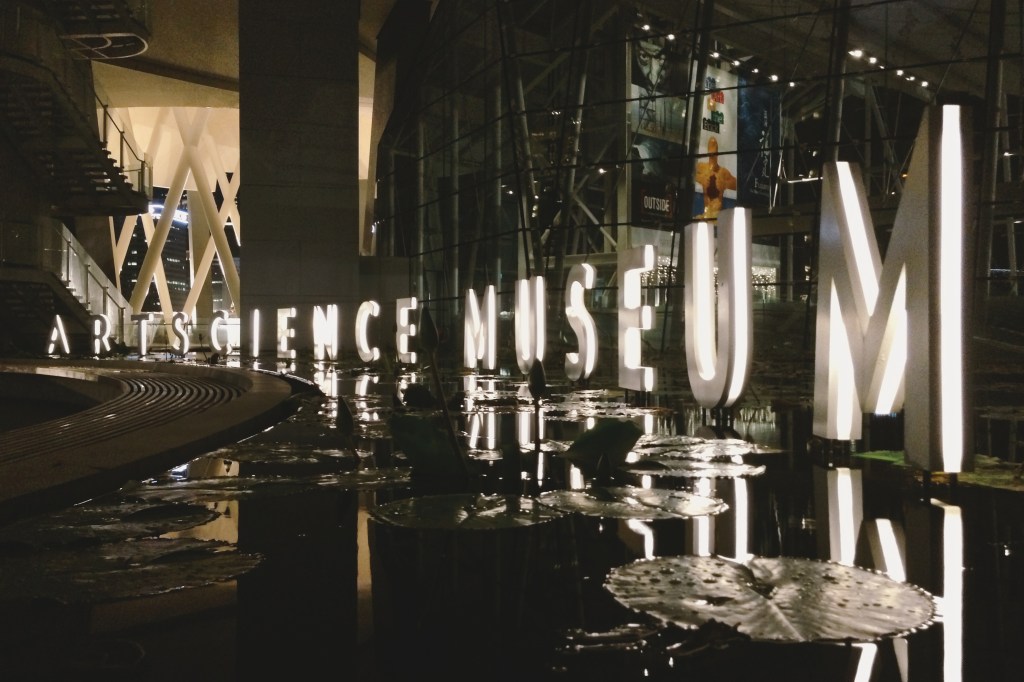
    ArtScience Museum
    ArtScience Museum

    Jan 14 Edit: Replaced the previous indoor low-light shot examples with a better pair taken at the Singapore ArtScience Museum.

  • ➟ Canon Powershot N

    n_1

    Canon Powershot N first impressions: Digital Photography Review

    Very intrigued by Canon’s latest consumer product shown off at CES. It’s an almost-square, mint tin-sized box with an 8x optical zoom lens, 12mp resolution, and wireless-N connectivity designed to work with your smartphone. Anything you shoot with it can be instantly shared in the ways you are already accustomed to, and the camera even applies a bunch of artistic filters automatically.

    This is an interesting and astute reaction to recent trends in consumer photography: namely, people shoot and share an imagebucket load of photos with their smartphones; the more advanced of these photographers care about and strive to eke ever more quality and clarity out of their daily shots, you even see some happy to carry DSLRs around to get shots exclusively for low-res online sharing; the emergence of middle-ground devices such as Micro Four-Thirds cameras, ultra-thin laptops, tablets (hell, even phablets); and of course, the rapid demise of consumer compact cameras for everyday use, having been deemed too much bulk and inconvenience for too little versatility and quality.

    This new PowerShot N cleverly defines a new middle-ground: a more ergonomically sound and high-quality experience than shooting with a smartphone’s camera, with comparable quality and superior portability versus other compacts, whilst enjoying all the connected features of your phone.

  • Essential iPhone Camera and Photo Apps

    Essential iPhone Camera and Photo Apps

    img_5642

    I sometimes get asked to suggest camera apps to new iPhone users, and often fall into the trap of recommending ones I’m in love with at the time, but aren’t necessarily good for everyone or indispensable.

    I’ve bought and put every major release through their paces over the last four years, and although some start off impressively, they turn out not to be suitable for everyday use and soon find themselves forgotten in a folder, never to be used again. One common reason for this is the production of looks that are too distinctive or recognizable. Imagine a library of photos taken over a year, all with the same fake light leak in the top-left corner. Pretty unacceptable. Some all-in-one jobs let you “fix” photos with a few presets, but if your problem falls somewhere in between, the inability to fine-tune can be a deal-breaker.

    So here are my more considered picks for the best camera and editing applications on the iPhone. Over time, I cleared out my entire screen of folders filled with photo apps, and now only keep a few essentials handy. You’ll be in good hands with any of these, as they tend to do a single thing well, or many things more than adequately.

    (more…)

  • A Sudden Crop of New iPhone Photo Apps

    iPhone photography apps hit a sort of peak with Hipstamatic, Instagram, Camera+, 645 Pro, and Snapseed. The past few months have seen a few quirky apps being released (Gridditor being one that comes to mind), but most have been crappy knockoffs of the very successful but sadly neglected Camera+*, or silly ones for decorating your shots with candy-colored doodles or cartoon stamps.

    Very little for the serious photographer determined to replace a compact camera with an iPhone… until these came along!

    •••

    Blux Camera: The first app I’ve seen to offer the equivalent of what’s called “Auto Scene Mode” on most point-and-shoot cameras. The app applies a compensation scene mode based on what it thinks you need (taking local weather into account too). I’ve been waiting for someone to do this, but Blux seems to go even further with 14 filters, tilt-shift effects, and a futuristic, customizable UI that might prove too fiddly in actual use. Still, it looks very good and it’s free for a couple of days.
    Edit: Having tried it now, it’s not worth the trouble. Too much high-tech flash, not enough substance and usability. I’d put this at the top of the cheesy knockoff category.

    Alt Photo: This one has some real pedigree, like VSCO Cam, coming from maker of pro Photoshop plugins, Alien Skin Software. It has one of the best-looking brightness adjustment algorithms I’ve seen in an iPhone app (Mattebox has another great one), not to mention some nicely tuned filters designed to emulate film looks.

    Perfectly Clear: This just got a big 3.0 update today, with a fully redesigned UI and higher quality results. This is a one-function app — it tunes up lackluster photos with more clarity, color, and brightness — and it does it well. There’s now also the ability to remove noise for no extra charge; it used to be an in-app purchase. It even claims to recognize and brighten eyes, smoothen skin, and whiten teeth. That last one sounds like a joke, but there it is on the page.

    Scout Camera: A camera replacement app with a few nice filters, and the welcome ability to see and shoot in 1:1, 4:3, 3:2, and 16:9 aspect ratios, all live. It’s a shame you can’t change filters on a photo after you’ve shot it, and that you can’t import your own photos into its lightbox for editing. Hopefully the developer is looking into these things, because you can get those aspect ratios from 645 Pro too, and there’s little reason to make this your first choice in a pinch.

    Beamr: From the makers of JPEGmini, one of the best photo technologies I’ve seen in awhile (it crunches down high quality JPEGs to half their size, and your eyes won’t see the difference) comes this new photo sharing app. The app description is a bit confusing, but I think it uploads your full-size photos using the aforementioned tech, and then creates a flippable online magazine — oh god, those are back? — that you can send as a link to friends and family. The selling point here is high quality photos, not the recompressed junk you see on Facebook or other sharing sites.

    Photoset: Another sharing app, this one from Tumblr. It lets you very quickly create a layout of several photos by dragging them around, and then publish them to a webpage on Photoset.com or to an existing Tumblr blog. Pretty cool, and much more versatile than using something like, say, Twitphoto for impromptu sharing.

    • I say Camera+ has been neglected despite having recently been updated because of how unusable its filters look these days on brighter iPhone 5 photos, and because other much needed refinements never materialized. It’s like there’s nobody there looking out to keep it #1.
  • iPhone 5 Camera Comparison vs. Ricoh GR Digital III

    The new iPhone 5 features an improved camera, mainly in the area of image signal processing in the A6 chip, which reportedly allows it to do intelligent sharpening, noise removal, and pixel binning for low-light situations. The lens elements have also been rearranged, resulting in a slightly different field of vision from the iPhone 4S. There’s also the new sapphire crystal lens cover which resists scratches — unfortunately, I already have a tiny speck of dust on the inside of mine, which I’ll have to get them to clean at some point.

    I’m more interested in seeing how the iPhone 5 competes with other point and shoot cameras than with the iPhone 4S. Here are two scenes taken with the Ricoh GR Digital III (my review here), a high-end compact comparable to Panasonic’s LUMIX LX3/5/7 series, and Canon’s S90/95/100 cameras.

    The photos below are direct from camera and have not been fixed or enhanced. The GRD III is something of a prosumer camera, and if handled correctly, i.e. with manual controls and lots of fiddling, is capable of some great results. For parity with the iPhone 5, these photos were taken in fully automatic mode, letting the camera figure things out.

    Ricoh GRD 3

    I had to take this shot twice because the Ricoh chose a very shallow focus, directed on the leaves in the middle, which left the stone duck and foreground leaves blurred out. It’s a little underexposed, but the larger sensor gives some beautiful detail to the fern.

    iPhone 5

    The iPhone 5 analyzed the same scene, and chose to keep a relatively deep focus for a usable shot the first time around. The photo is also noticeably warmer (pleasant, but perhaps inaccurate) and brighter. This photo is good to go without any editing, which is how most users want it. No problems with sharpness in the details.

    Ricoh GRD 3

    The GRD had trouble focusing again, and ended up with a spot in the middle (above and to the right of her nose), which keeps the dog’s legs in focus but not the face. Although what fine details that were in focus got captured with a good amount of clarity, the photo is pretty dull and boring on the whole. Your aunt would not consider this a keeper without a trip to iPhoto.

    iPhone 5

    Again, brighter and warmer. I don’t think the iPhone makes everything warmer, only in shade and indoor lighting conditions. None of the daylight shots I’ve seen so far look overly warm. Sharpness is consistent across all areas of interest, and noise is acceptable for ISO 400. Fine fur details are not as well resolved as in the GRD photo, but this may be down to JPEG compression. Using an app that allows setting lower JPEG compression, such as 645 Pro, may compensate for this.

    For most purposes, I can’t see why the iPhone 5 wouldn’t be an adequate camera replacement. In terms of straight-from-the-camera usability, these photos are astounding compared to the GRD III, which used to cost in the region of USD$500-600 (it has now been replaced by the GRD IV model).

    I’ve gone on a few trips where I ended up taking all or most of my photos on an iPhone 4/4S, with few regrets. Focusing on the 4S was a little touchy, and it tended to take photos before focus had fully locked, if you hit the button too soon; this seems to work the way it should on the iPhone 5.